

Originally published on the date shown. Product details, people and offers reflect that publication; contact UBX for current service scope.
Prerequisites
Any Web browser, login credentials UBX Cloud provided through welcome email.
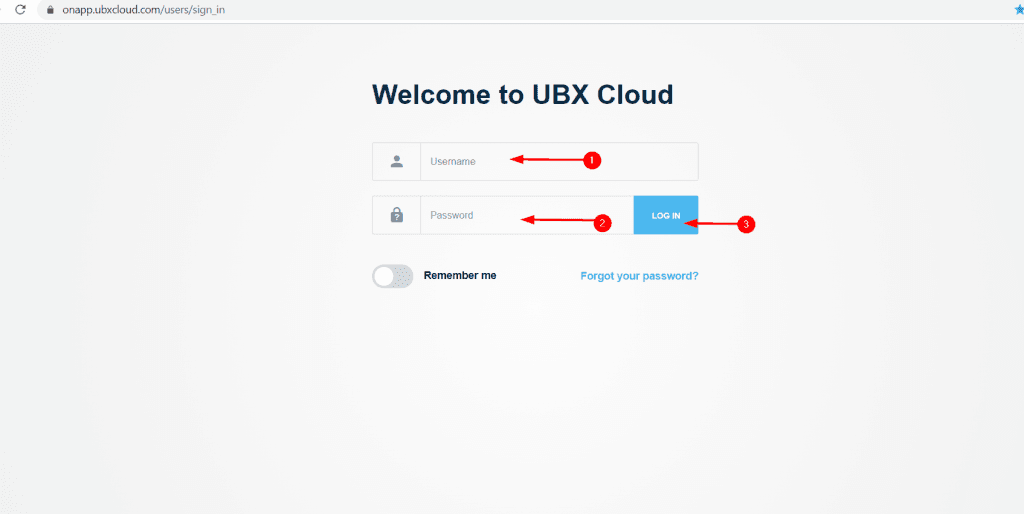
1.Open any Web Browser and enter following url https://onapp.ubxcloud.com/ , once web page opened please enter login credentials and login for authentication.
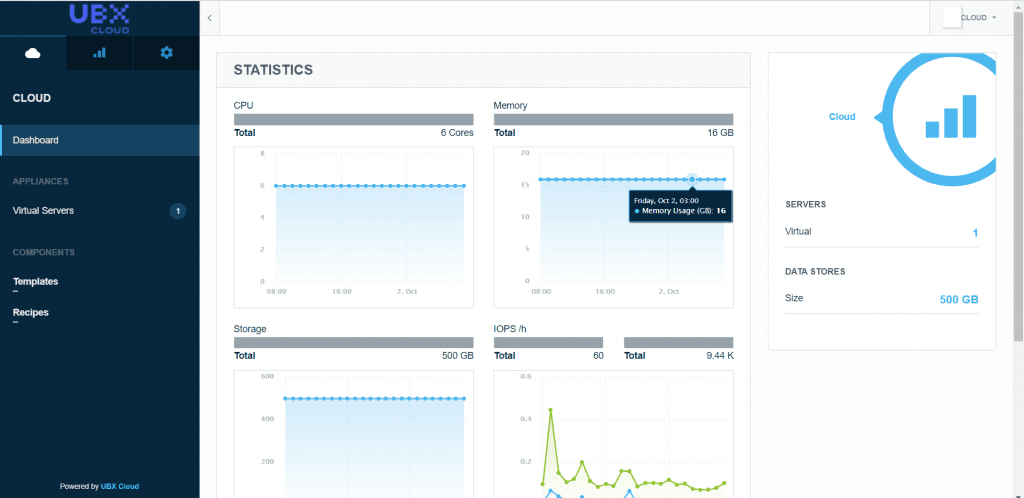
2.On Successful login user can see this Dashboard with following statistics.
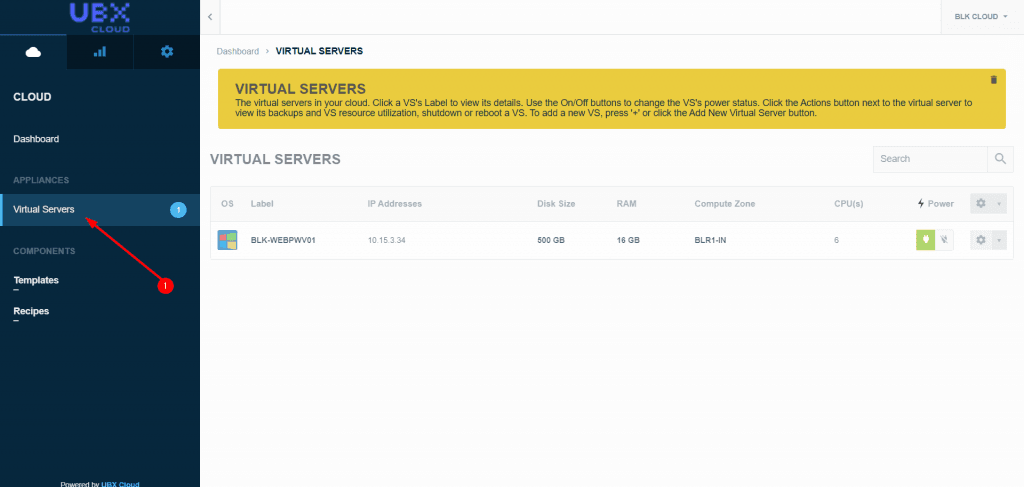
3.Navigate to Virtual serves under Appliance menu, here user can see the list of VM available details including resource data and VM online status.
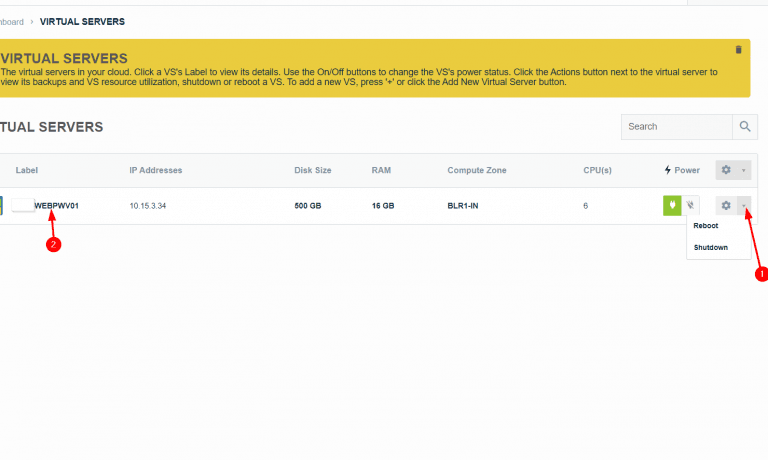
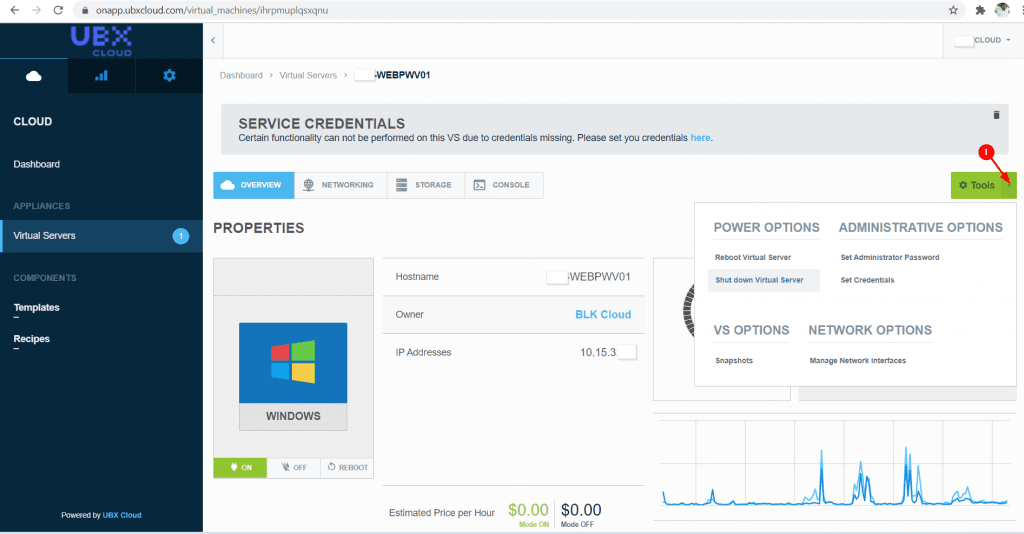
4.VM can be rebooted or Shutdown directly by selecting under dropdown menu, to explore more about particular VM click on VM Name.
5.In this page user can view all resource data for selected VM.
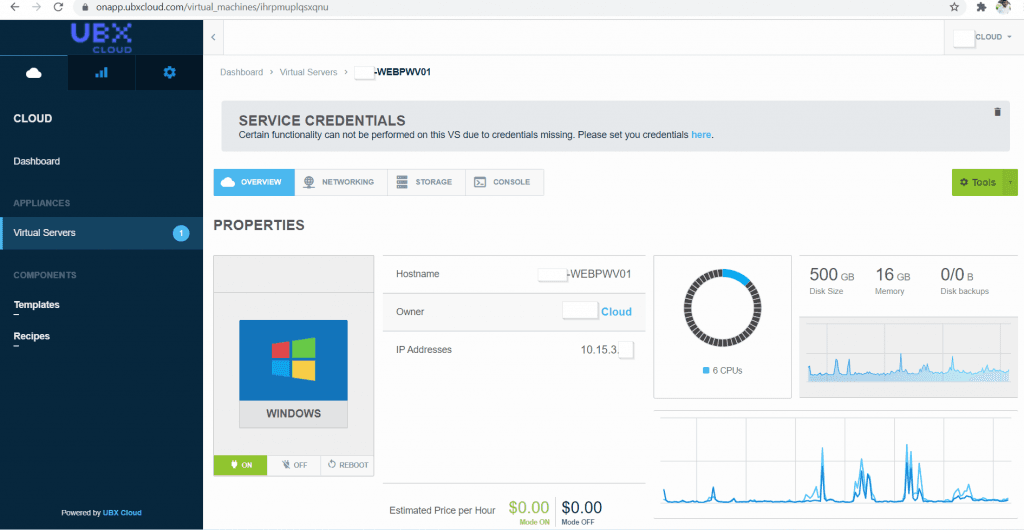
6.In Same page, under tools dropdown menu user can find Power Option, Administrative option, Snapshot Option and Network options.
Conclusion
The steps in this article helped you Manage UBXCloud – OnApp Virtual Machines
If you need any further technical support, Please reach out to helpdesk@ubxcloud.com